Start an Assessment
Start a new movement assessment.
- 1
Log into the Demo 2 app and locate the Start Assessment button on the Home screen
- 2
Choose a client option: add a guest client, select an existing client, or create a new client
- 3
Select an assessment type: functional assessment or joint comparison (functional assessment is typical for in-person assessments)
- 4
Choose from the six available assessments
- 5
Customize assessment variations as needed (e.g., change squat from overhead to standard, hinge from single leg to bilateral, lunge from lateral to reverse)
- 6
Click 'let's go' to begin the selected assessment
- 7
View assessment instructions and video demonstrations by clicking on the instructions option
- 8
Complete the assessment
- 9
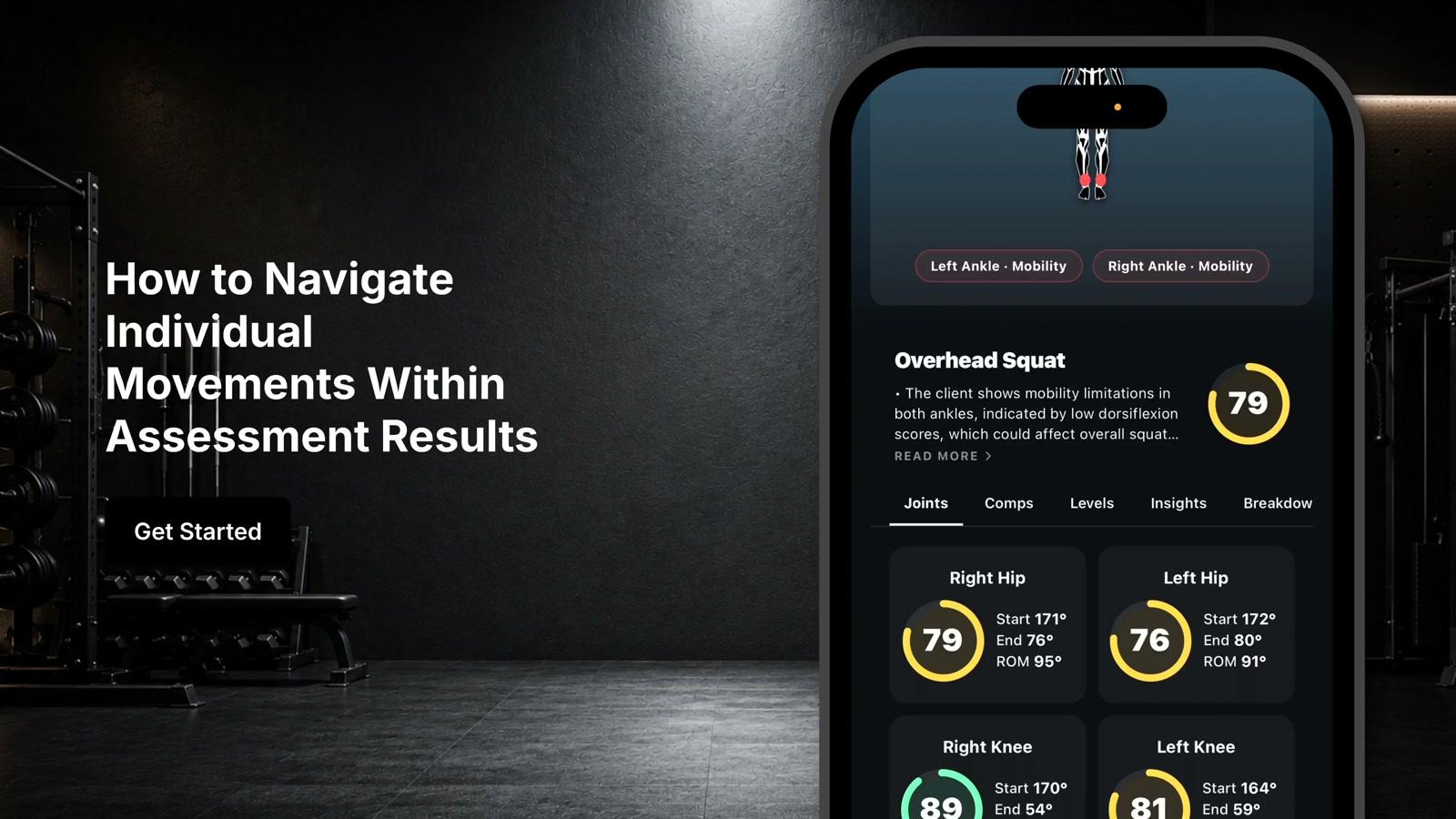
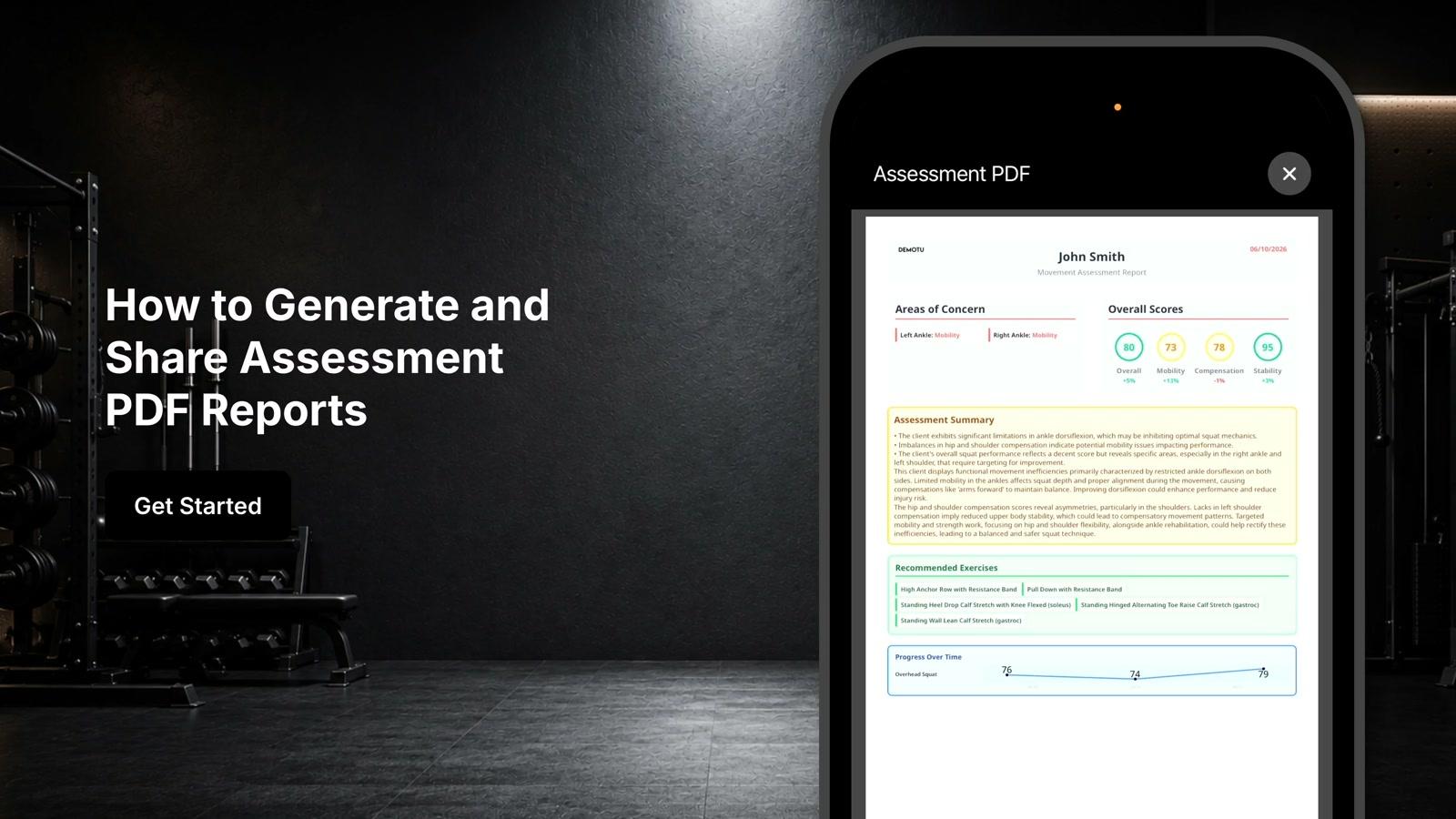
Select 'complete assessment' to receive assessment results